
Setting up PayPal
HostCore charges your customers through your own PayPal Business account. You create a REST API app in PayPal, paste its credentials into HostCore, and payments land in your PayPal balance exactly as they would with any other integration. HostCore never holds your money, and customers log in and approve payments on PayPal's own checkout, so their PayPal login and card details never reach our servers.
Once connected, HostCore uses your credentials to:
- Send customers to PayPal Checkout to pay invoices
- Save the customer's PayPal account so renewals can be charged without them logging in again
- Charge saved PayPal accounts automatically when renewals come due
- Issue refunds you trigger from HostCore
- Create and maintain the webhook PayPal uses to tell HostCore a payment succeeded
Before you start
You need:
- A PayPal Business account. Personal accounts can't create live REST API apps.
- PayPal's approval to save payment methods, if you want renewals to charge automatically. PayPal reviews every account before it can save customers' PayPal accounts for later payments, and the feature is only available in supported countries. To apply, log in to paypal.com and go to Account Settings → Payment Preferences → Save PayPal and Venmo payment methods, then click Get Started.
PayPal's review can take a few days. You can set everything else up and test in the sandbox while you wait, since the sandbox doesn't need approval.
Create a REST API app
-
Log in to the PayPal Developer Dashboard with your PayPal Business account.
-
Use the Sandbox | Live toggle at the top of the page to switch to Live.
-
Go to Apps & Credentials and click Create App.
-
Name it something you'll recognise later, such as
HostCore, and click Create App.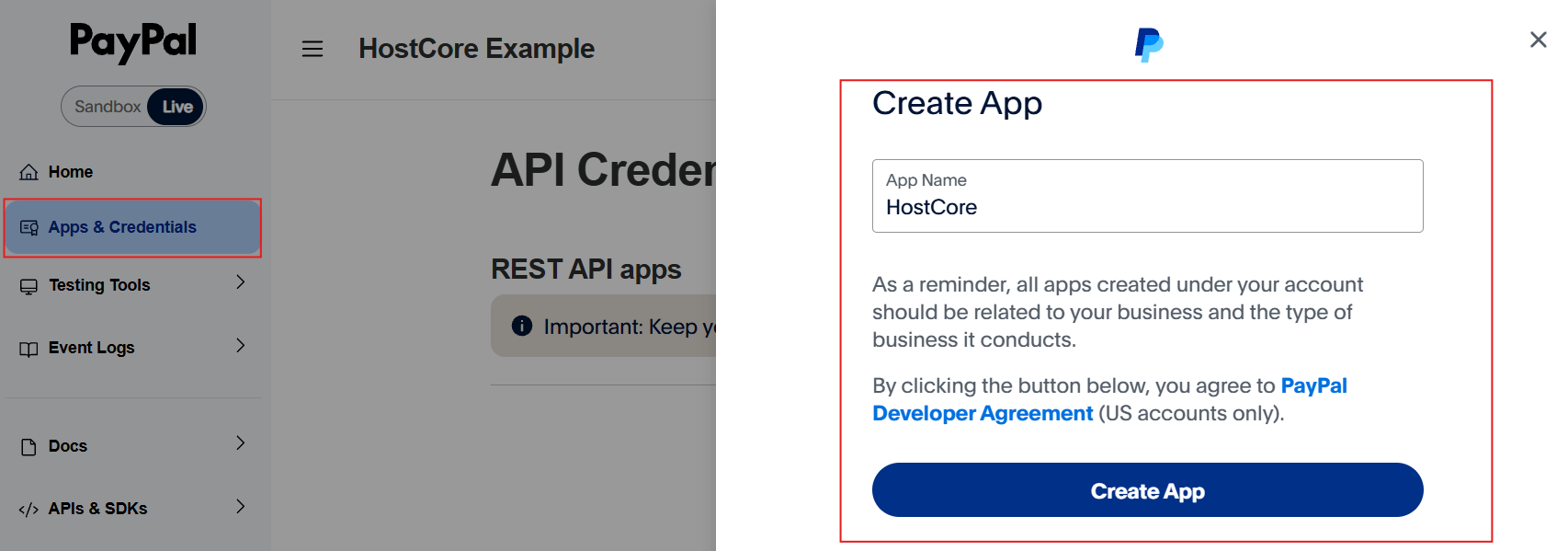
-
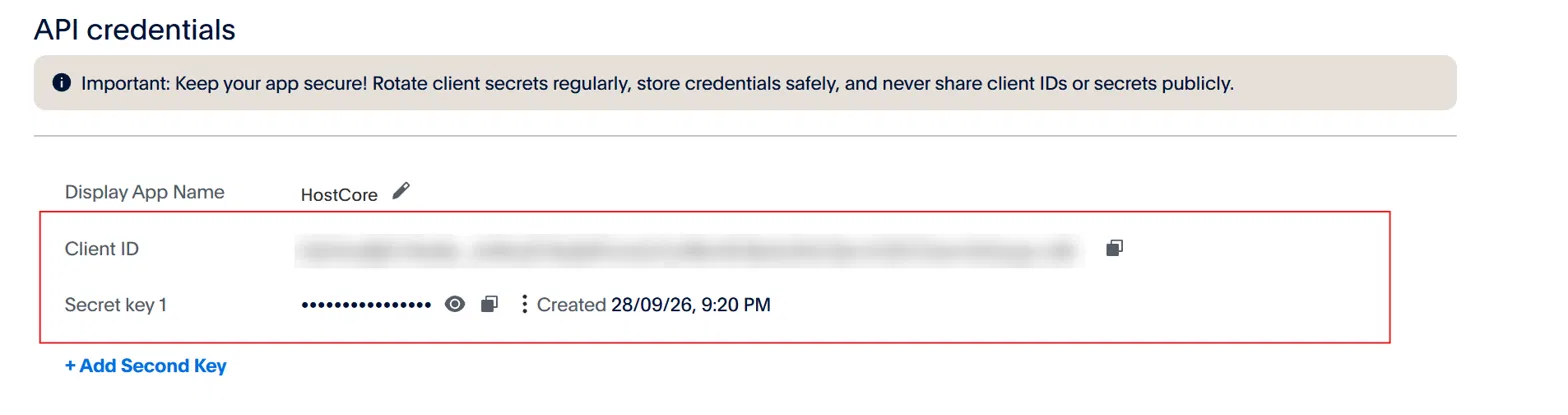
On the app's page, copy the Client ID and Secret. You'll paste both into HostCore.
Enable the features HostCore needs
Still on your app's page in the Developer Dashboard, enable the following payment capabilities
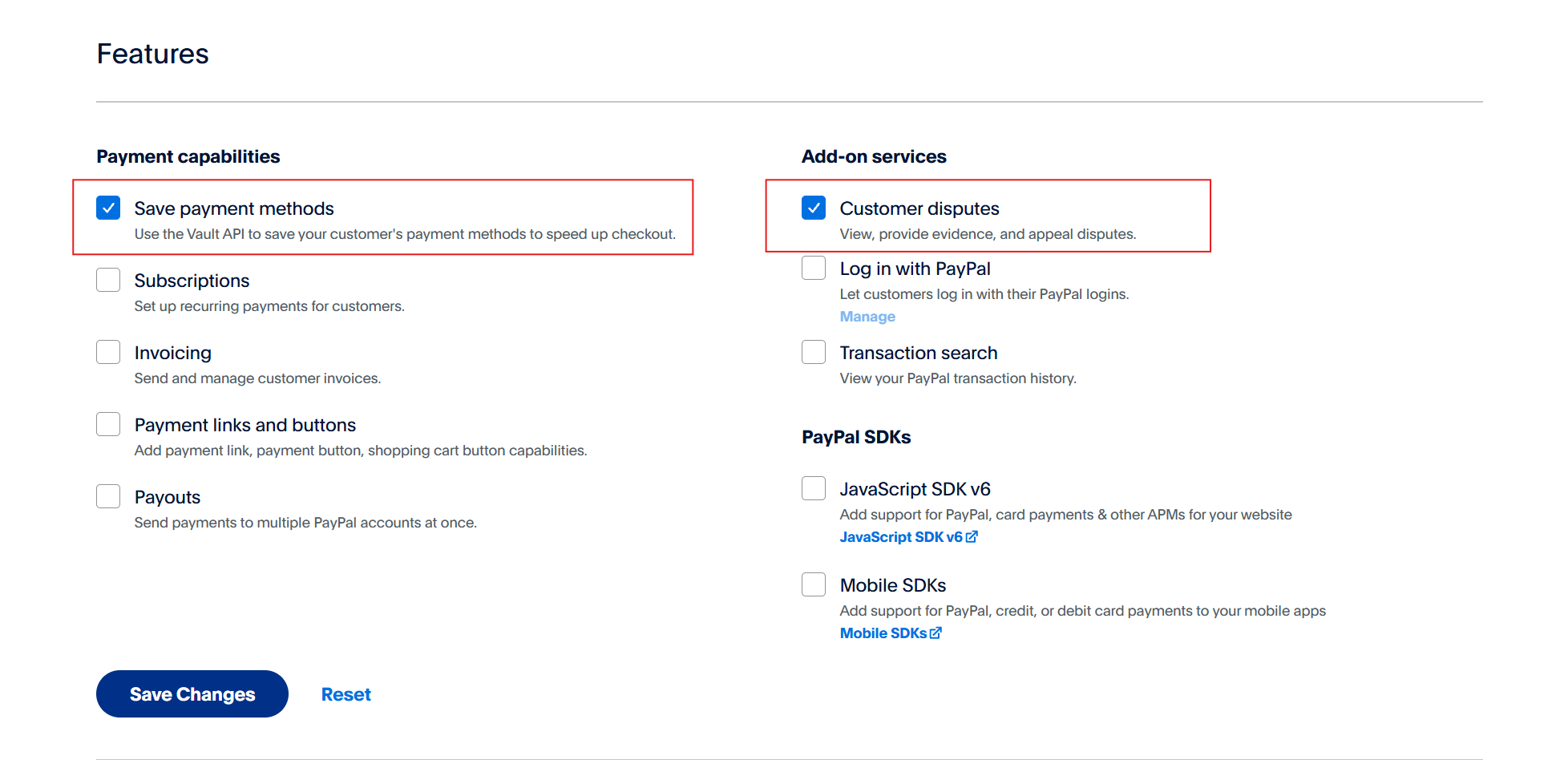
HostCore requires the PayPal Vault API, if your unable to select "Save payment methods", you will need to request access from PayPal
Connect it to HostCore
-
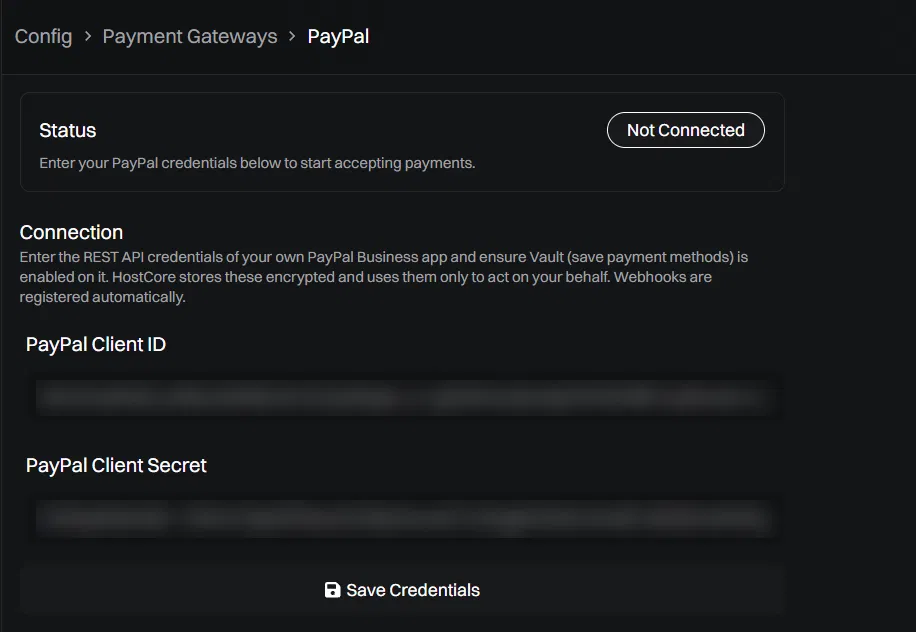
In your HostCore admin dashboard, go to Config → Payment Gateways → PayPal.
-
Paste your Client ID and Secret, then click save.
-
When you're ready to accept payments, turn on Accept Payments.
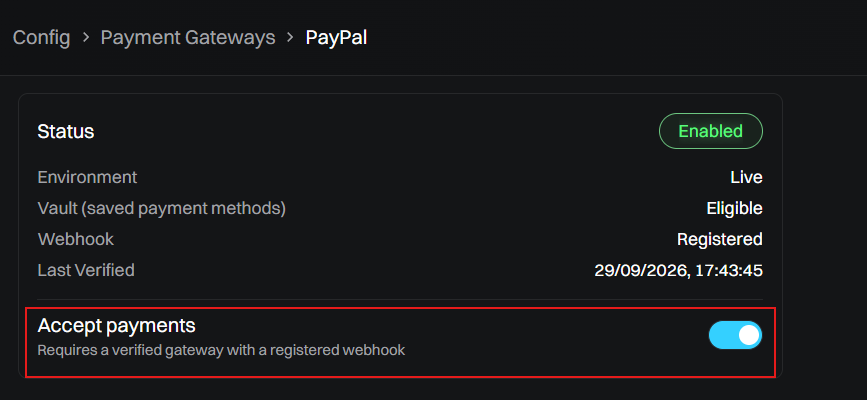
HostCore checks your credentials and creates a webhook in your PayPal app that points at your store. You don't need to create one yourself. You can see the webhook HostCore created on your app's page in the PayPal Developer Dashboard, under Webhooks.
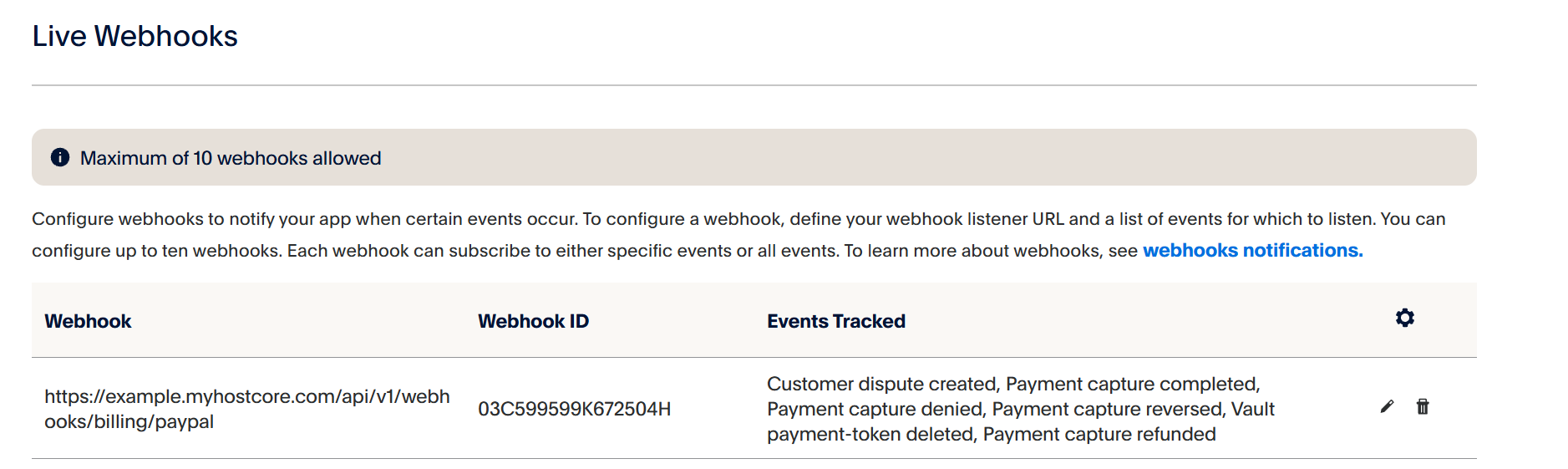
Don't delete or edit the webhook HostCore creates. It's how PayPal confirms payments to your store. Without it, customers can pay and HostCore won't know.
If you accidentally delete the webhook, or it isn't created automatically, click the Verify button at the top right of the Config → Payment Gateways → PayPal page.
Testing with the PayPal sandbox
Before taking real payments, we recommend connecting sandbox credentials and running through a purchase end to end.
- In the PayPal Developer Dashboard, switch the Sandbox | Live toggle to Sandbox.
- Go to Apps & Credentials and create an app the same way as above, then copy its sandbox Client ID and Secret. Sandbox apps can save payment methods without PayPal's approval.
- Connect them to HostCore the same way.
- Go to Testing Tools → Sandbox Accounts and find the Personal sandbox account. PayPal creates one for you. Open it to see its email and password.
- Place an order on your store, choose PayPal at checkout, and log in with the sandbox Personal account.
- Check that the invoice is marked paid in HostCore, and that the payment appears in your sandbox Business account at sandbox.paypal.com.
When everything works, replace the sandbox credentials with your live ones.
Customers and saved PayPal accounts created in the sandbox don't exist in live mode. Don't run real customers through a sandbox-connected store, because their saved PayPal accounts won't work once you switch to your live credentials.
Migrating from WHMCS?
Connect the same PayPal Business account your WHMCS install uses. Saved PayPal payment methods migrate from WHMCS as PayPal tokens, and a token only works in the account that created it. If you connect a different account, every migrated PayPal payment method will fail at renewal. See Migrating from WHMCS.
Rotating your secret
To replace your secret, because it was exposed or someone who had it has left:
- In the PayPal Developer Dashboard, open your app and generate a new secret.
- Paste the new secret into the Payment Gateway config, as shown in the setup, and save.
- Back in PayPal, delete the old secret.
Your Client ID doesn't change. Saved customers, PayPal accounts and renewals carry on as normal.
Troubleshooting
HostCore rejects my credentials when I save them. Check that you copied the whole Client ID and Secret, and that both come from the same app. Sandbox and live credentials are separate, so check that you didn't mix a sandbox Client ID with a live Secret.
Payments go through in PayPal but invoices stay unpaid in HostCore. The webhook is missing. Check the Webhooks section of your app in the PayPal Developer Dashboard for the webhook HostCore created, and click Verify in HostCore to recreate it. PayPal allows up to 10 webhooks per app, so if the app already has 10, delete one you don't use first.
Customers can pay, but renewals don't charge automatically. HostCore can't save PayPal accounts. Check that Save payment methods is turned on for your live app, and that PayPal has approved your account for it (see Before you start).
Renewals fail for customers who paid successfully before. The connected credentials belong to a different PayPal account (or mode) than the one the PayPal account was saved in. This usually means sandbox credentials were swapped for live ones, or a WHMCS migration was connected to a different PayPal Business account.
Need a hand?
Ask our support team and we'll help you get connected.