
Setting up Stripe
HostCore charges your customers through your own Stripe account. You create an API key in Stripe, paste it into HostCore, and payments land in your Stripe balance exactly as they would with any other integration. HostCore never holds your money, and raw card numbers never reach our servers — customers pay on Stripe's hosted checkout page.
Once connected, HostCore uses your key to:
- Send customers to Stripe Checkout to pay invoices and save a card
- Create a Stripe customer for each buyer and save their card for renewals
- Charge saved cards automatically when renewals come due
- Issue refunds you trigger from HostCore
- Create and maintain the webhook Stripe uses to tell HostCore a payment succeeded
Which key to use
HostCore accepts three kinds of Stripe key:
| Key | Starts with | Use it for |
|---|---|---|
| Restricted key | rk_live_ | Production. Recommended. |
| Standard secret key | sk_live_ | Production, only if you can't use a restricted key. |
| Sandbox key | sk_test_ / rk_test_ | Testing without moving real money. |
Use a restricted key. It only grants the permissions HostCore actually needs. A standard secret key gives full control of your Stripe account — including payouts and your balance — so if it's ever exposed, the damage isn't limited to billing. We encrypt every key we store, but there's no reason to hand over more access than the job requires.
Create a restricted key
-
In your Stripe Dashboard, go to Developers → API keys.
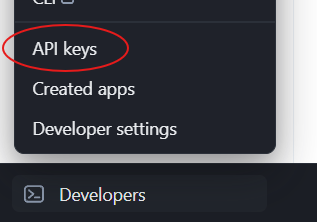
-
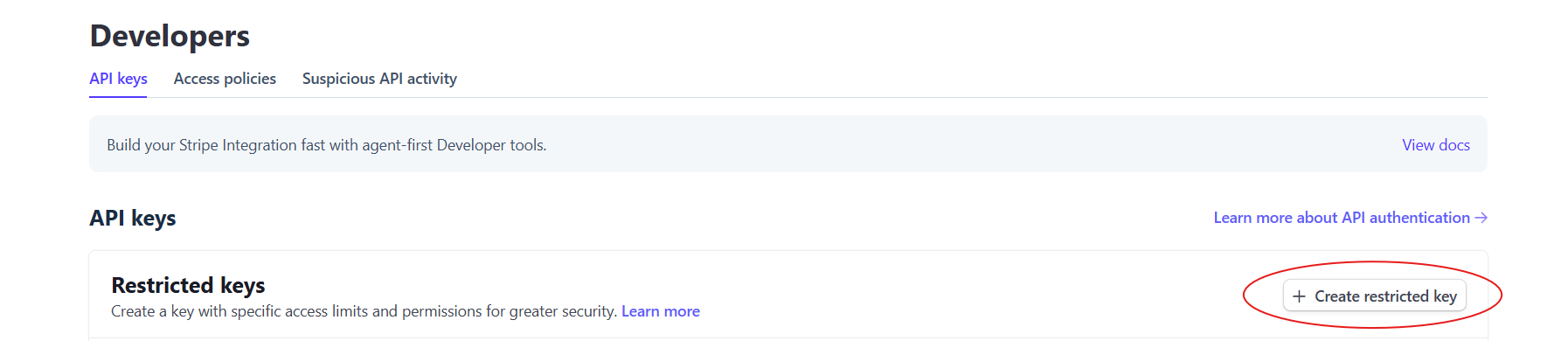
Click Create restricted key.
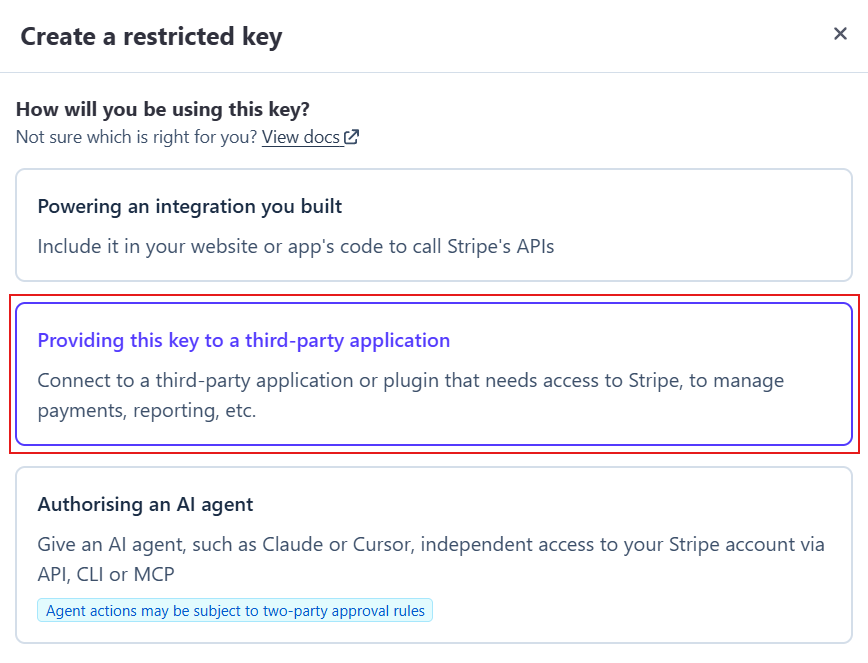
Then select "Providing this key to a third-party application"
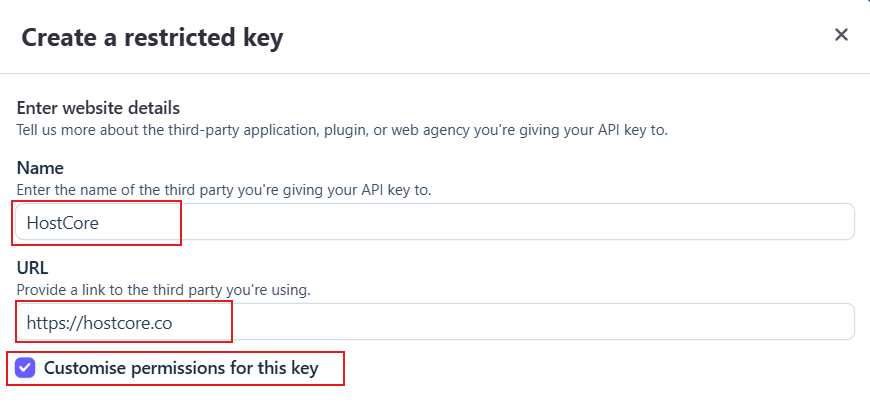
Then enter the following information
-
Name it something you'll recognise later, such as
API key for HostCore. -
Leave every permission as their default or set them to None, then set only these to Write:
Resource Access Customers Write Payment Methods Write Payment Intents Write Charges and Refunds Write Checkout Sessions Write Webhook Endpoints Write
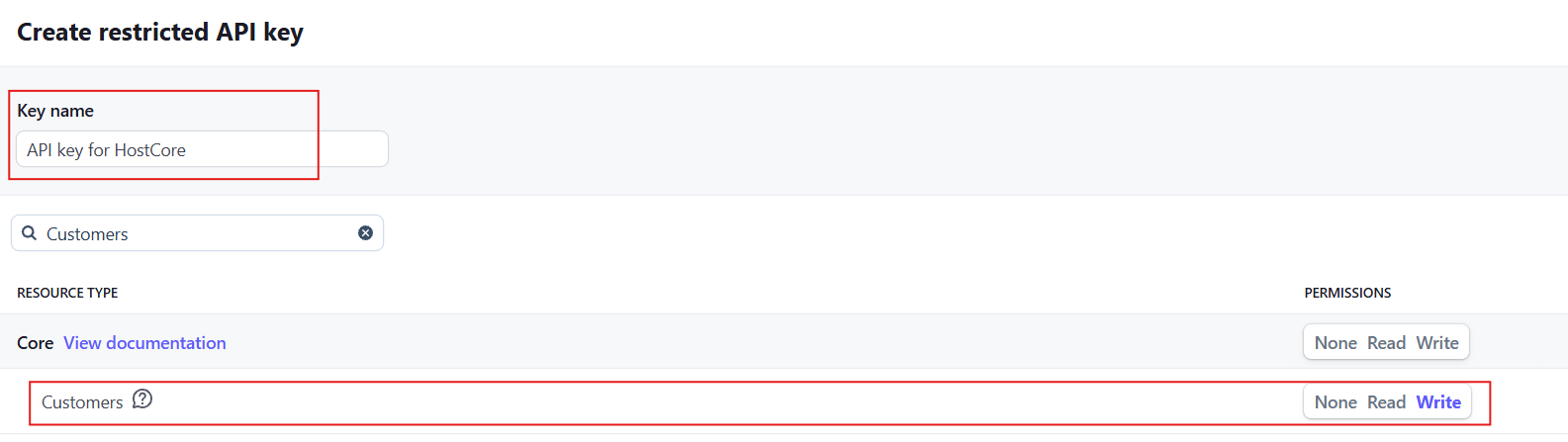





- Click Create key and copy it. Stripe only shows the full key once.
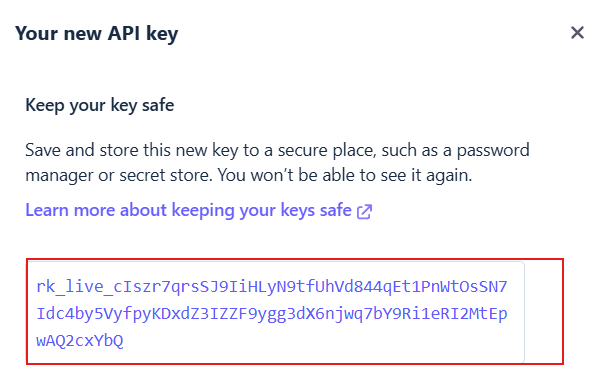
Connect it to HostCore
-
In your HostCore admin dashboard, go to Config → Payment Gateways → Stripe.
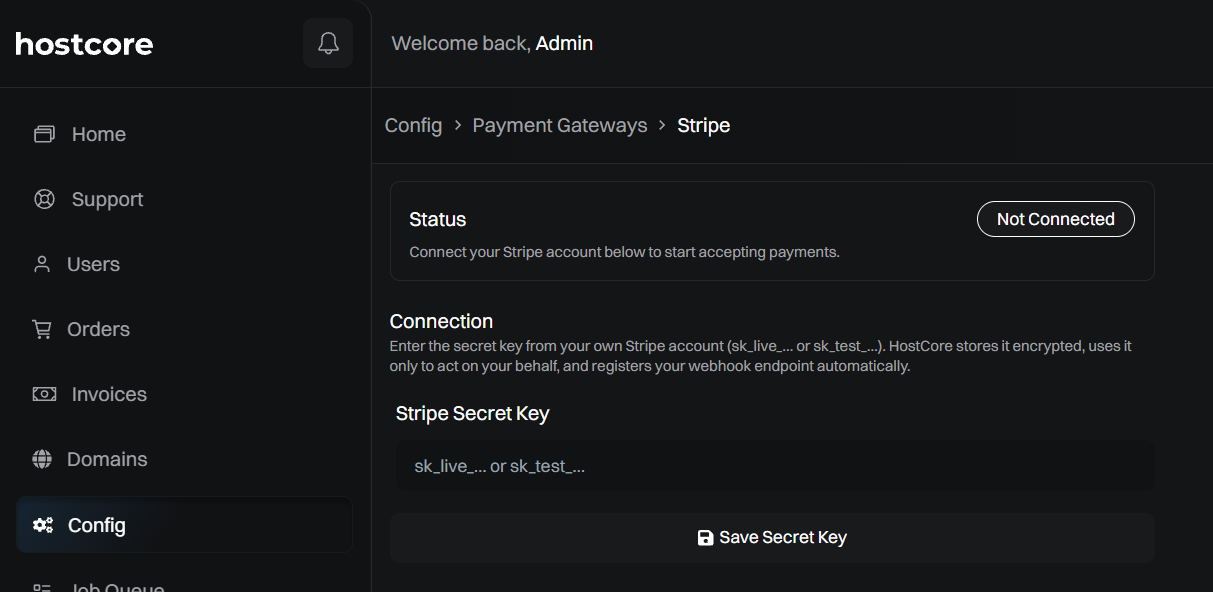
-
Paste your key and save.
-
If your ready to accept payments enable "Accept Payments"
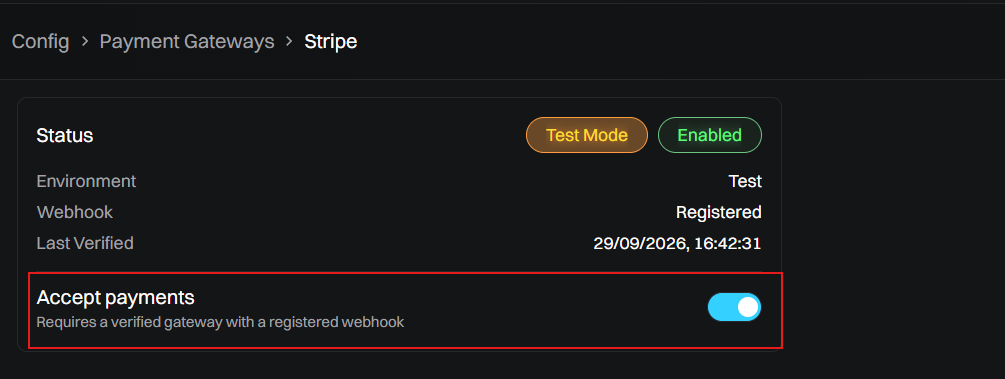
The screenshots in this guide use a Stripe Sandbox key, so the status shows Test Mode. With a live restricted key (
rk_live_…), it shows Live Mode instead.
HostCore checks the key and creates a webhook endpoint in your Stripe account pointing at your store. You don't need to create one yourself. You can see the webhook HostCore created under Developers → Webhooks in Stripe.
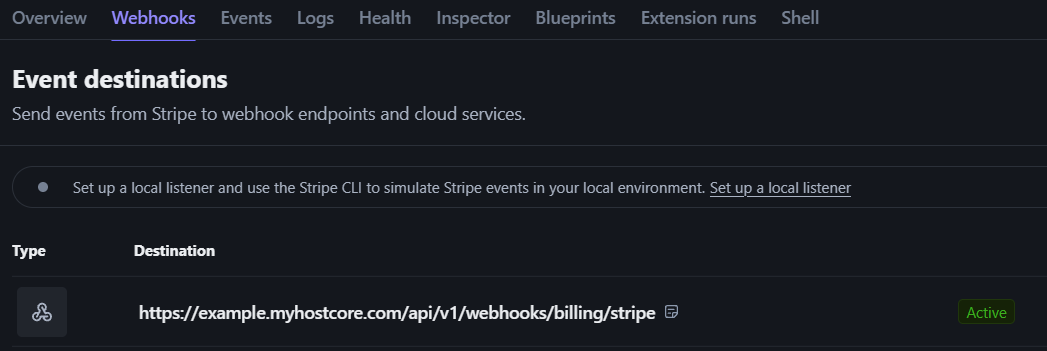
Don't delete or edit the webhook HostCore creates. It's how Stripe confirms payments to your store — without it, customers can pay and HostCore won't know.
If you accidently delete the stripe webhook, or it does not get created automatically, click the "Verify" button located in the top right of the Config → Payment Gateways → Stripe page
Testing with Stripe sandbox
Before taking real payments it is recommended to connect a sandbox key and run through a purchase end to end.
-
In Stripe, switch to a sandbox (or test mode) using the account switcher.
-
Create a restricted key there with the same permissions as above — it will start with
rk_test_. -
Connect it to HostCore the same way.
-
Place an order on your store and pay with Stripe's test card
4242 4242 4242 4242, any future expiry date, and any CVC. -
Check that the invoice is marked paid in HostCore and the payment appears in your Stripe sandbox.
When everything works, replace the sandbox key with your live key.
Customers and saved cards created in a sandbox don't exist in live mode. Don't run real customers through a sandbox-connected store — their saved cards won't work once you switch to your live key.
Migrating from WHMCS?
Connect the same Stripe account your WHMCS install uses. Saved cards migrate from WHMCS as Stripe tokens, and a token only works inside the account that created it — connect a different account and every migrated card will fail at renewal. See Migrating from WHMCS.
Rotating your key
To replace a key — because it was exposed, or someone who had it has left:
- Rotate the key in Stripe
- Paste it into the Payment Gateway config as shown in the setup and save.
Your saved customers, cards and renewals carry on as normal.
Troubleshooting
HostCore rejects the key when I save it.
Check that you copied the whole key, and that it's a secret or restricted key —
publishable keys (pk_) won't work. If it's a restricted key, check that all six
permissions are set to Write.
Payments go through in Stripe but invoices stay unpaid in HostCore. The webhook is missing or disabled. Check Developers → Webhooks in Stripe for the endpoint HostCore created.
Renewals fail with "No such customer" or "No such payment method". The connected key belongs to a different Stripe account (or mode) than the one the card was saved in. This usually means a sandbox key was swapped for a live one, or a WHMCS migration was connected to a new Stripe account.
Refunds fail but payments work. The key is missing Refunds: Write. Edit the key in Stripe to add it — you don't need to reconnect.
Need a hand?
Ask our support team and we'll help you get connected.